Thunderbird Mail Client Setup
Overview
Here are the basic requirements for setting up Thunderbird Mail Client for PDN Emails :
For this, you are required:
- Software: Download Mozilla Thunderbird from the official website at www.thunderbird.net
- Credentials: You will need your university-issued PDN email address and your password.
If you encounter any issues, please don't hesitate to contact us.
1. Full Video Guide for Set-Up Thunderbird Mail
2. Step By Step Guide
- Download Mozilla Thunderbird from the following webpage : www.thunderbird.net
- Now install the Thunderbird setup & launch it.
- Please follow the following instructions to setup Mozilla Thunderbird as the mail client for PDN mail delivery.
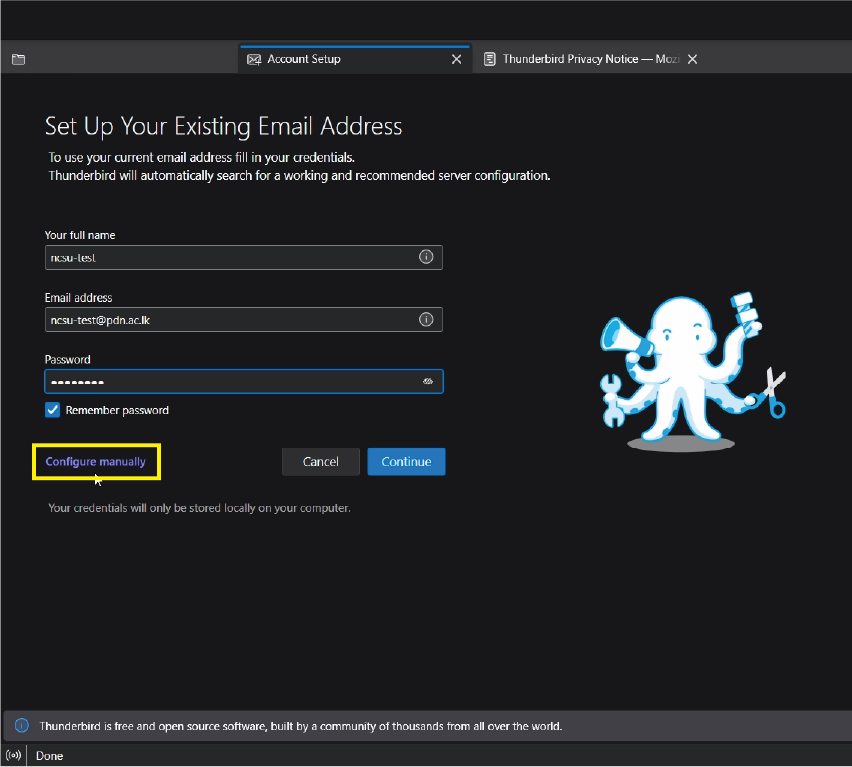
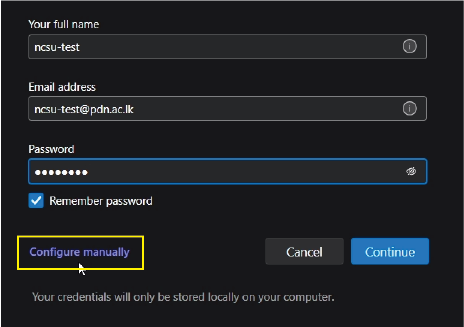
- Enter your PDN address and password and select configure manually to setup the incoming outgoing server configurations.
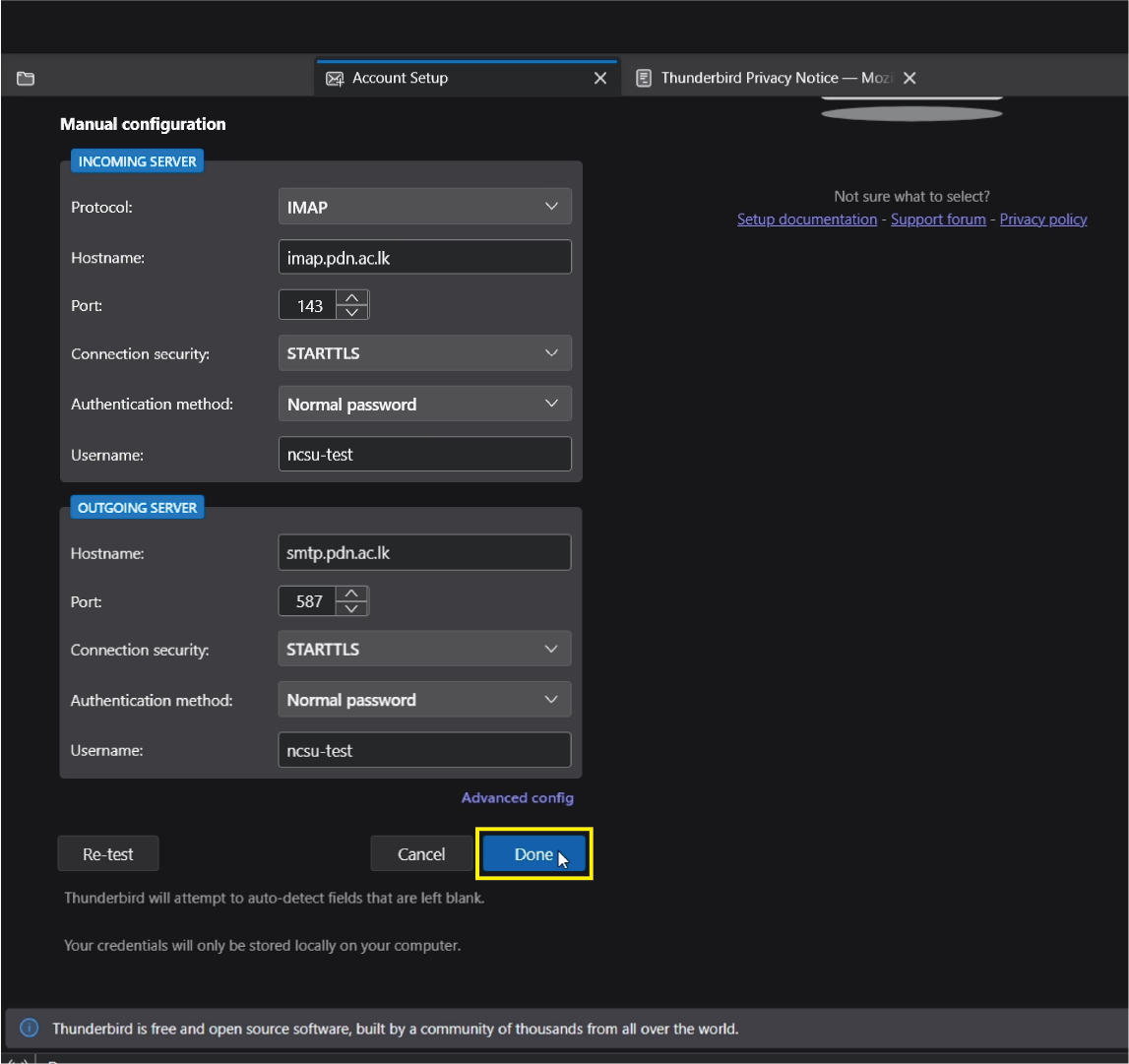
- Please fill the fields with the following details & click “Done”
-
Incoming Server
- Protocol: IMAP
- Hostname: imap.pdn.ac.lk
- Port: 143
- Connection security: STARTTLS
- Authentication method: Normal password
- Username: Your username (without @pdn.ac.lk)
-
Outgoing Server
- Hostname: smtp.pdn.ac.lk
- Port: 587
- Connection security: STARTTLS
- Authentication method: Normal password
- Username: Your username (without @pdn.ac.lk)
-
- Click “Finish” to complete the setup.
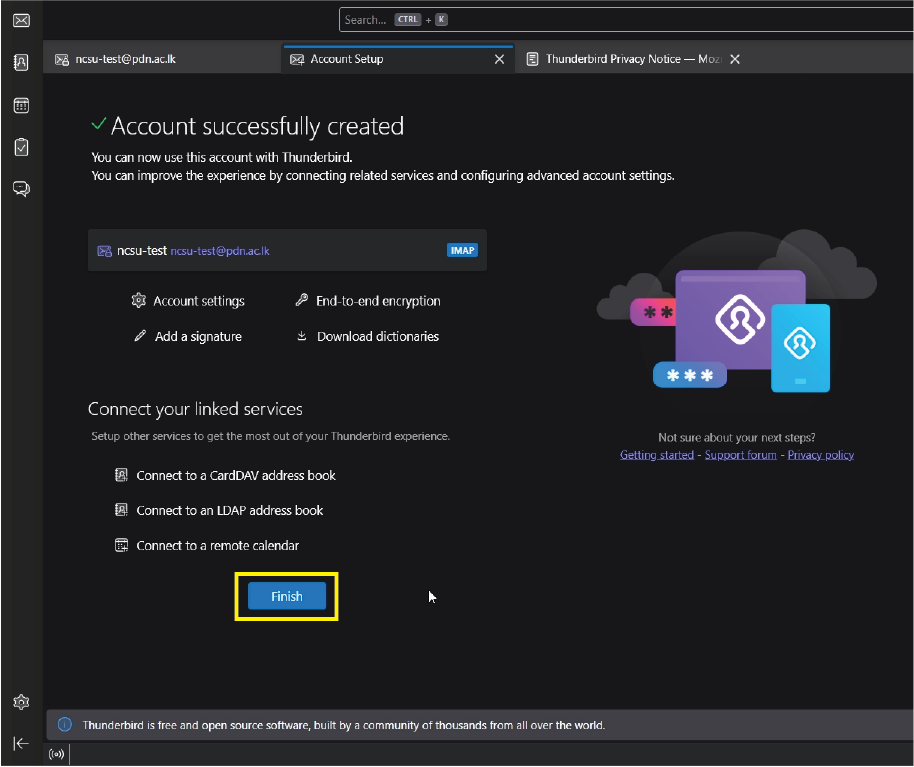
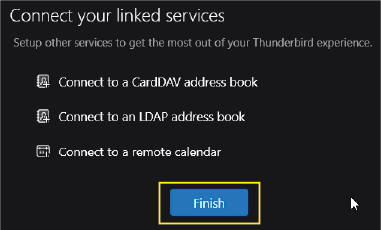
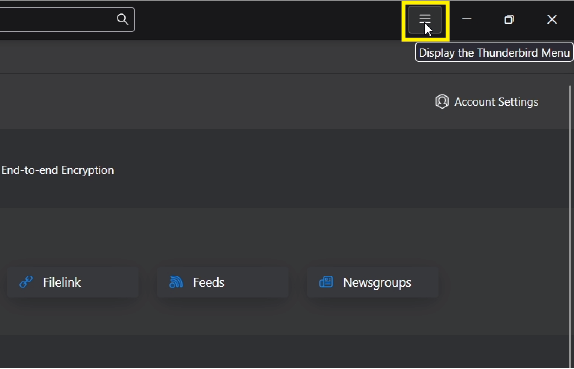
- Now click Thunderbird "Menu
" icon.
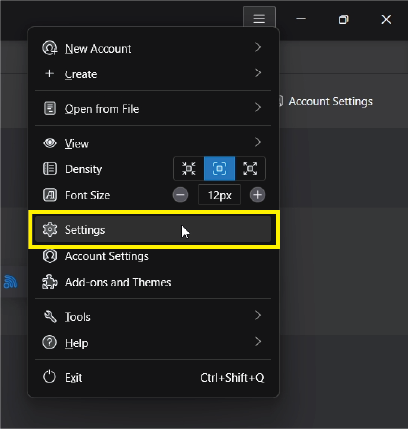
- Go to “ Settings ”.
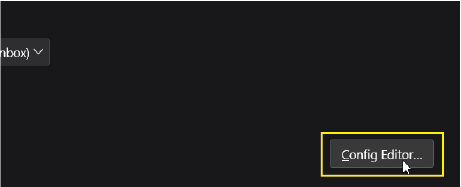
- Scroll down the settings page to end. Now click “ Config Editor ” button.

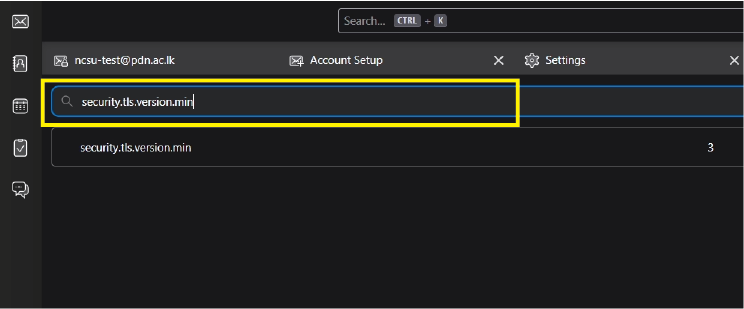
- Type “ Security.tls.version.min ” in the search bar.
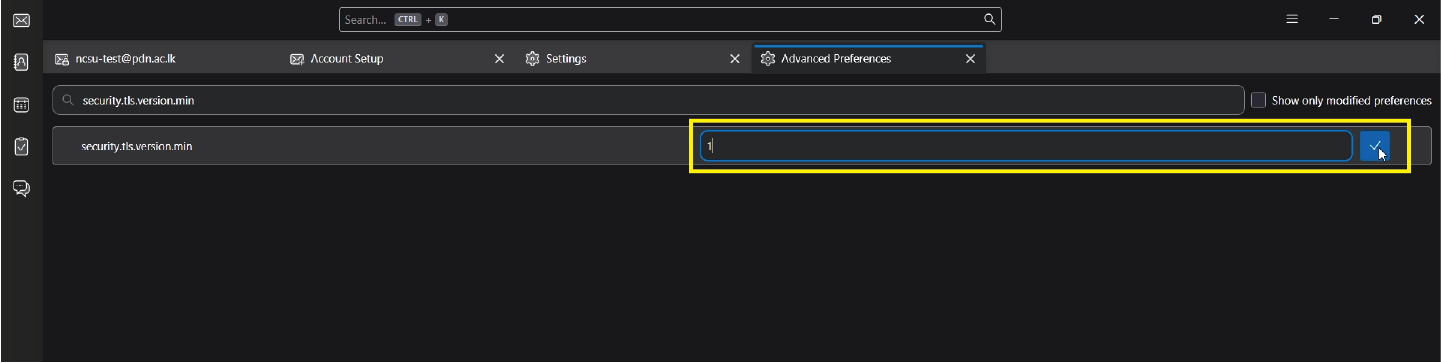
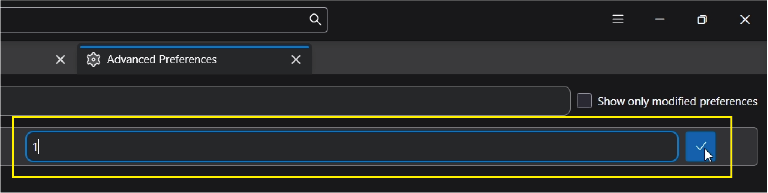
- Now click pencil icon
to edit & change “3” to “1”. Then click .
3. Export Guide
To back up your emails from Thunderbird to your PC, you can use the "ImportExportTools NG" add-on. This add-on allows you to export your emails.
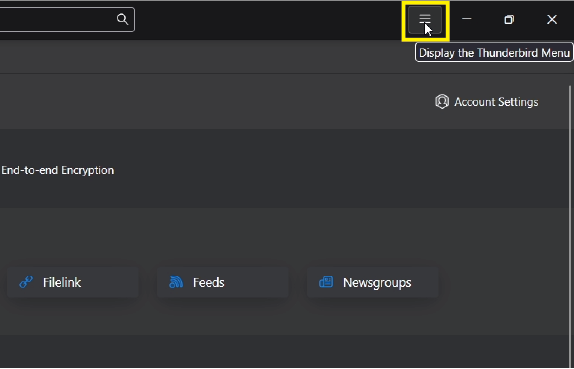
- Click Thunderbird "Menu
" icon.
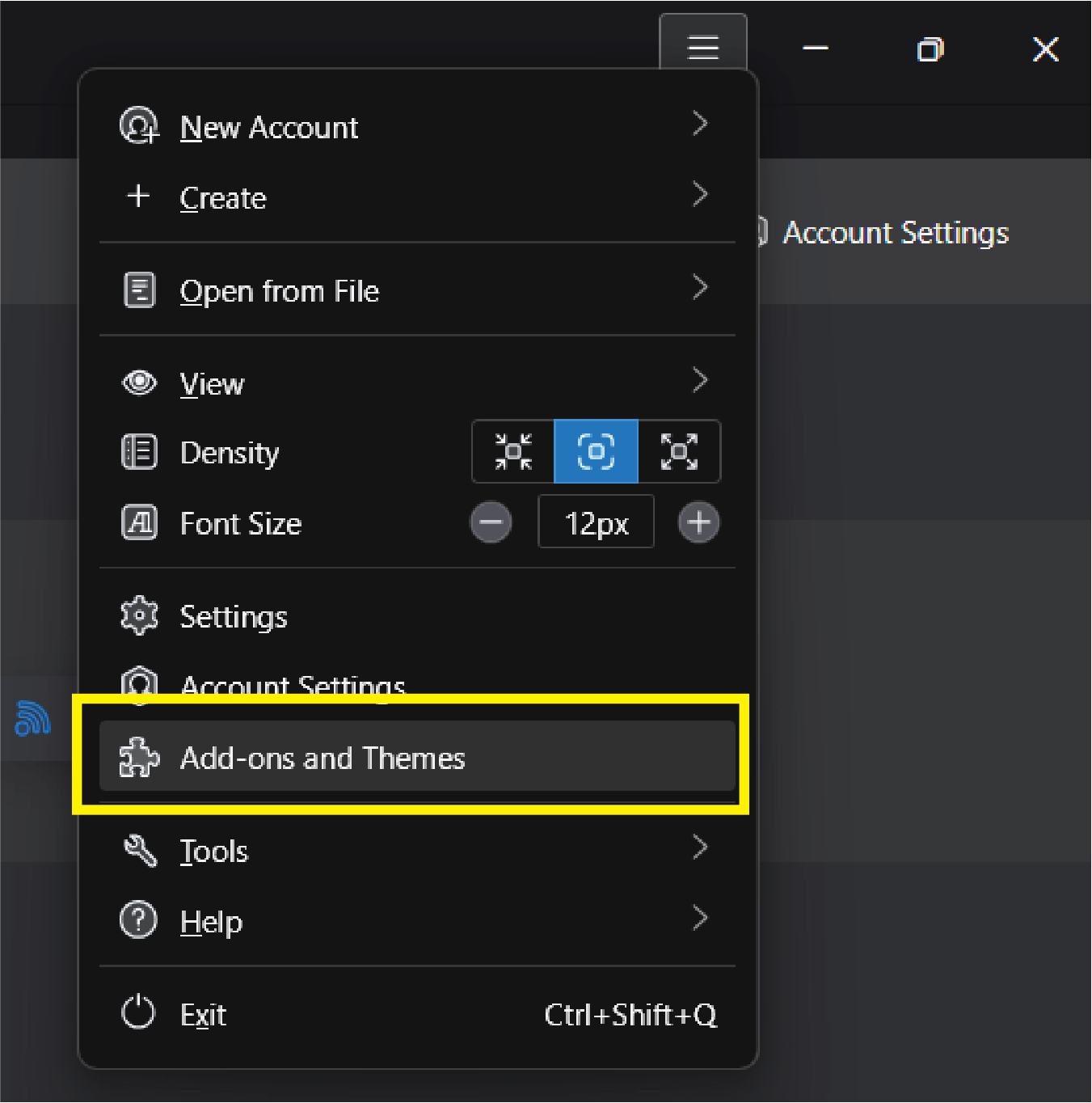
- Select “ Add-ons and Themes ”.
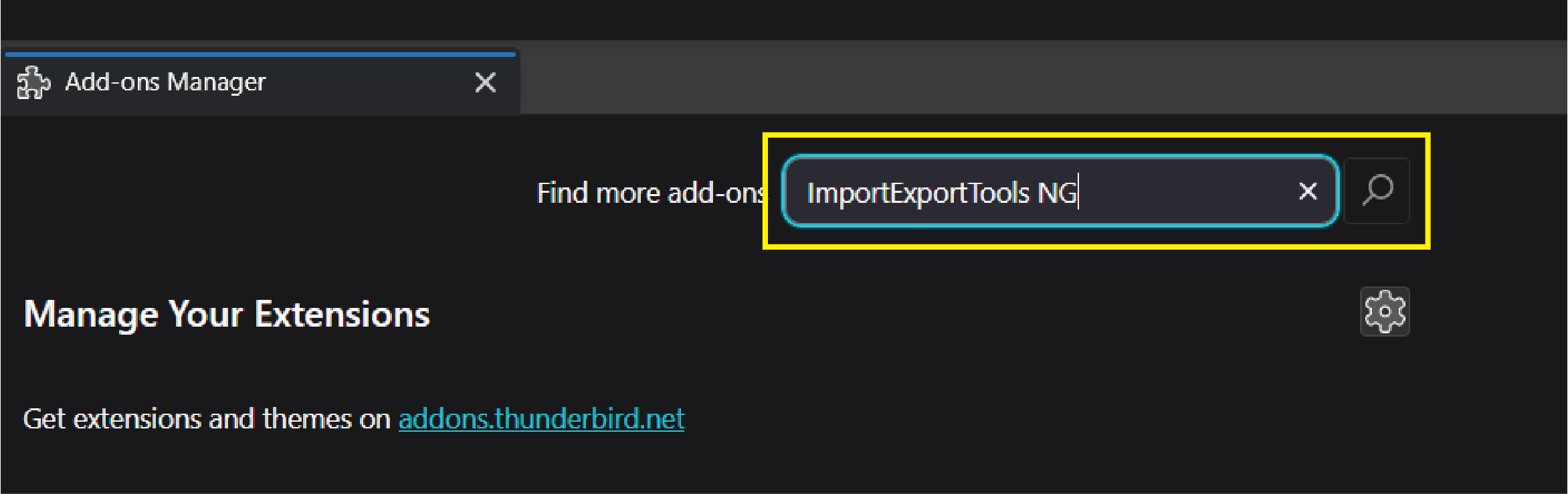
- In the search bar at the top , type “ ImportExportTools NG ” and press Enter.
- Find it in the results and click Add to Thunderbird.
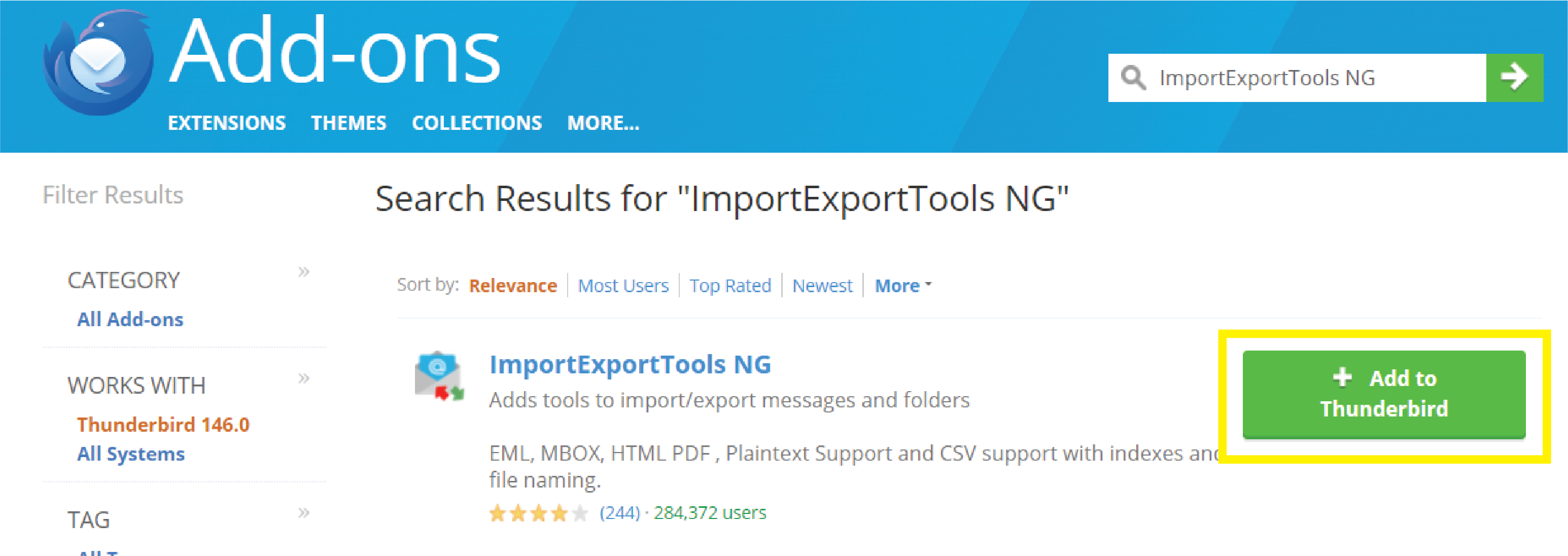
- Click Add again when the confirmation pop-up appears.

- Right-click on your Email Address (the top-level account name) in the left sidebar.
- Select ImportExportTools NG > Export Account.

- Click “OK” on the pop-up window.

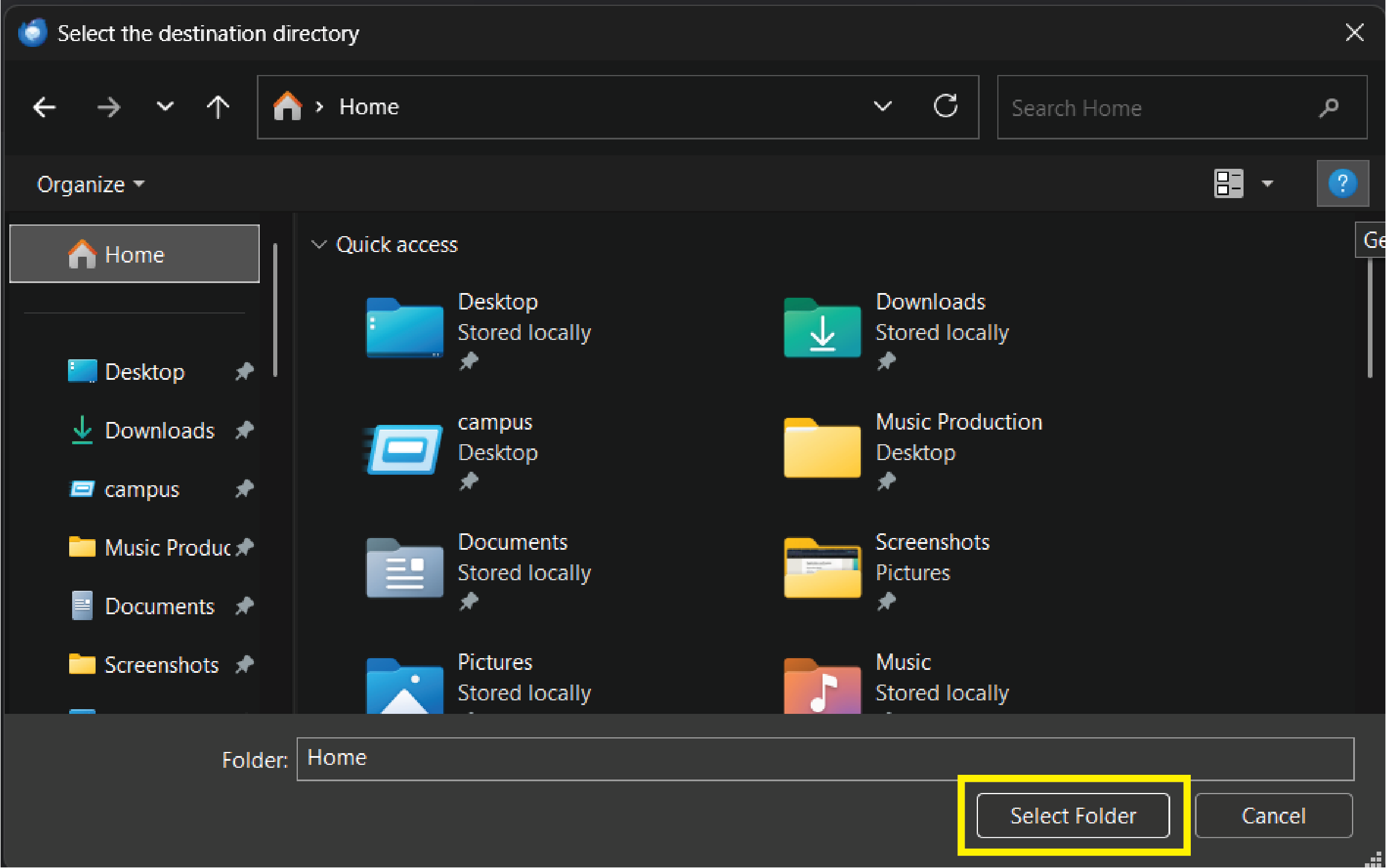
- Choose a folder on your computer where you want to save the exported emails and click Select Folder.
4. Import Guide
If you need to import emails back into Thunderbird from a previous backup, you can use the "ImportExportTools NG" add-on to do so.
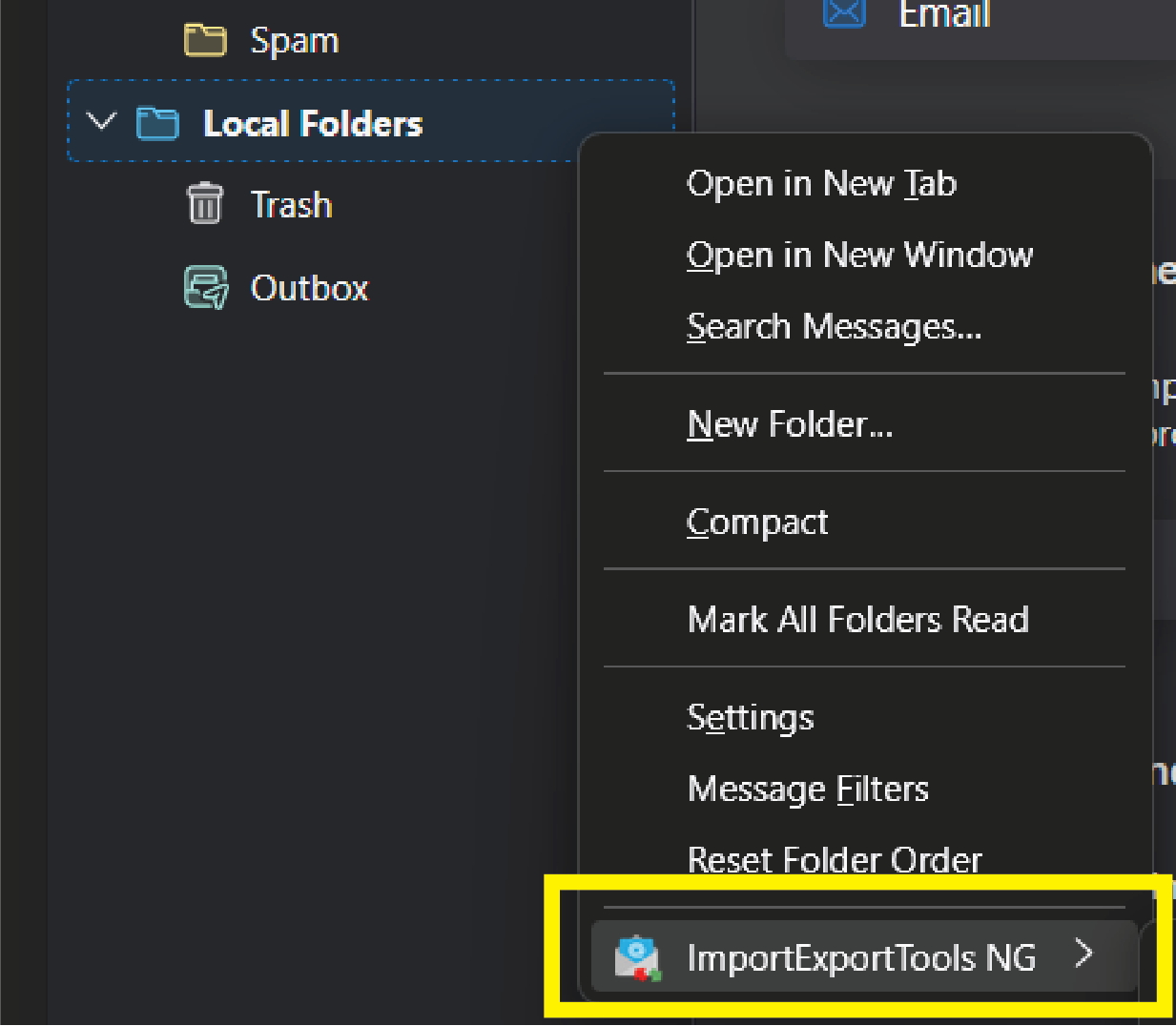
- Right-click on Local Folders in the left sidebar.
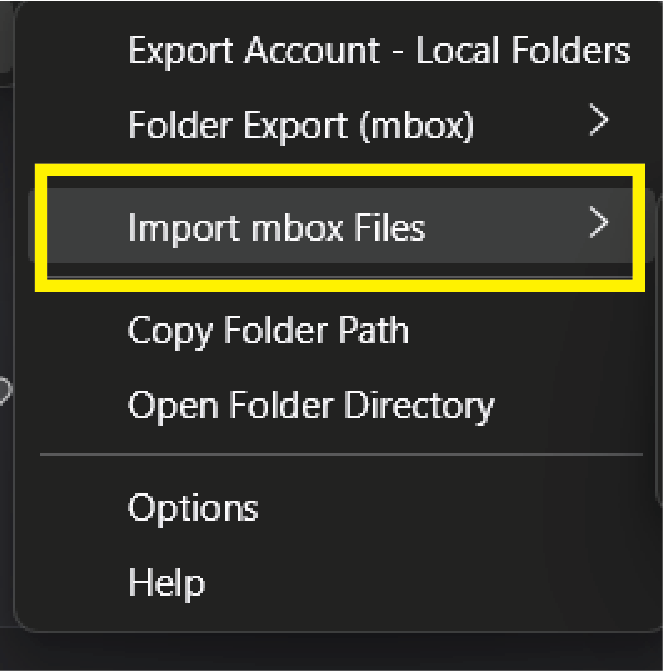
- Navigate to ImportExportTools NG > Import mbox file.
- Choose Individual mbox files (with sbd structure) and click OK.

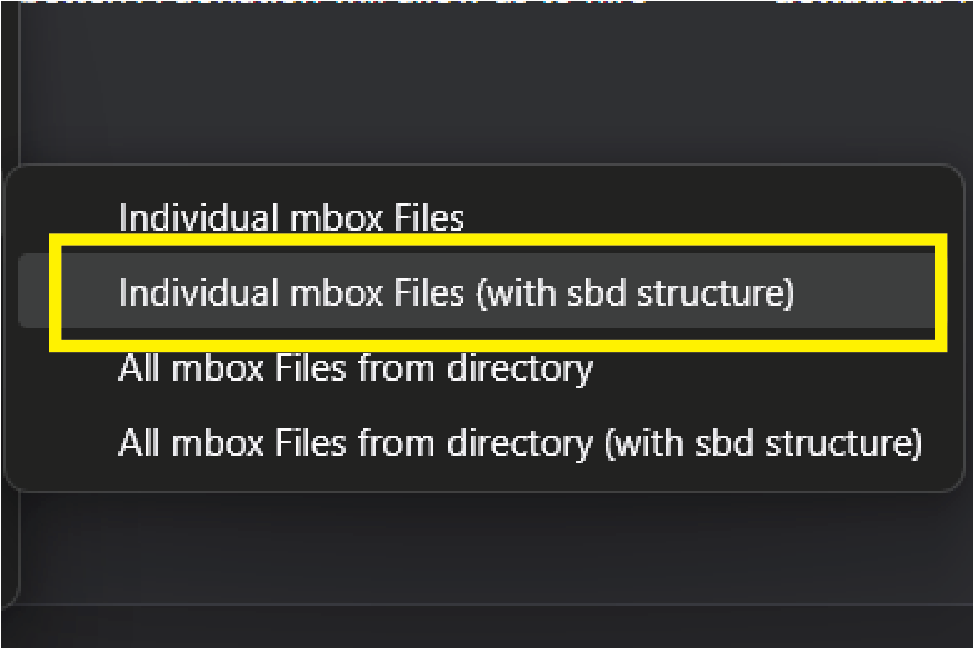
- Browse your computer, select the following file you previously exported, and click Open.


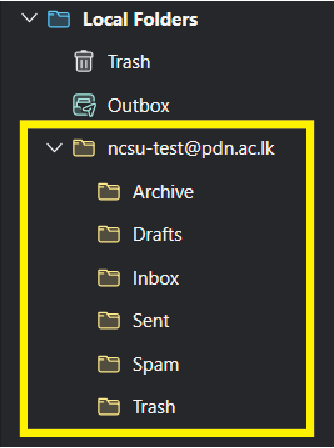
- Now you can see your imported emails in Thunderbird.